User Manual
For Pawgress 1.0 · last updated September 3, 2026
Pawgress answers one question quickly: how much did I lift on this machine last time? Everything below explains how to do that, and what the rest of the app does once you want more than the number.
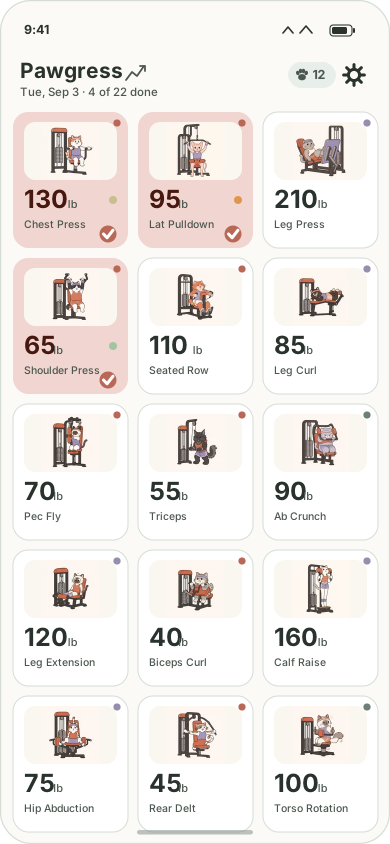
The main grid
This is the screen you'll spend nearly all your time on. Each tile is one machine, showing its artwork, the last weight you lifted on it, and its name. The weight is deliberately large — it needs to be readable at arm's length while you're standing at the machine.
Under the Pawgress title is today's date and your progress, like 4 of 22 done. Tiles you've already logged today turn a filled terracotta with a checkmark, so a glance tells you what's left in your circuit.
What's in the top bar
| Tap this | To get |
|---|---|
| The word Pawgress | Fun Facts — your stats and your coach |
| The small graph icon | Trends — charts of your progress |
| The paw and number | Coaches — spend pawprints |
| The gear | Settings |
Machines are grouped by body area — upper body first, then core, then lower, then everything else — but they're laid out as one plain grid so an area with an odd number of machines never leaves a gap.
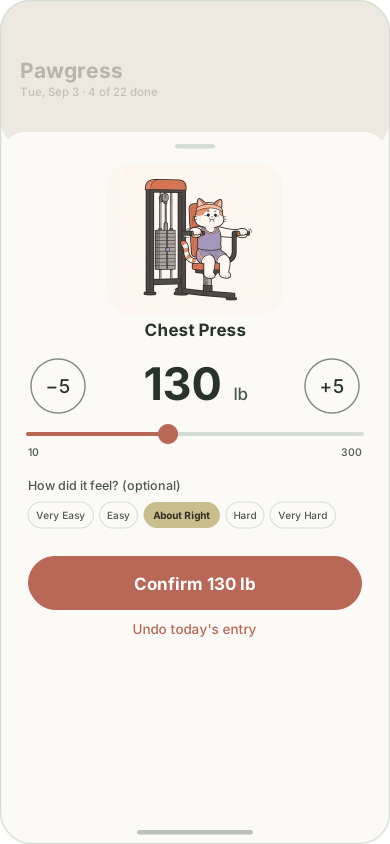
Logging a lift
Tap any tile and a sheet slides up with last time's weight already dialed in. If nothing changed — which is most days — the big button at the bottom already says Confirm 130 lb, and you're done in one tap.
If today is different, three ways to change the number:
- −5 / +5 — the large circular buttons, for the usual small adjustment.
- The slider — for a bigger jump.
The range is 10–300 lb in 5 lb steps, and the button label changes to Log 135 lb once the number differs from last time, so you always know whether you're repeating or changing.
How did it feel? (optional)
Five pills — Very Easy, Easy, About Right, Hard, Very Hard — let you record how the set felt. It's entirely optional; tap the selected pill again to clear it. Whatever you pick shows up later as a small colored dot on the tile and travels to your spreadsheet.
Fixing a mistake
Tap a completed tile again to change the weight, or use Undo today's entry to remove it entirely. If the entry had already synced, the stale row is removed from your spreadsheet rather than left sitting next to the corrected one.
Reading the colored dots
Two different dots appear on a tile, and they mean different things.
Corner dot — body area
Top-right of each tile, telling you which part of the body it works:
- Upper body
- Core
- Lower body
- Other
The same colors appear in Settings and in the Trends breakdown, so a color means the same thing everywhere in the app.
Dot beside the weight — how it felt
Only shows if you recorded a difficulty for your last set:
- Very Easy
- Easy
- About Right
- Hard
- Very Hard
The gym day (4am reset)
Pawgress's day runs 4am to 4am, not midnight to midnight. A session that runs past midnight still counts as that evening's workout, and nothing flips over underneath you mid-workout.
At 4am every tile goes back to its un-done state, ready for the next session, and the weights stay exactly where you left them. Rest days simply pass untouched — there's nothing to dismiss and nothing to skip.
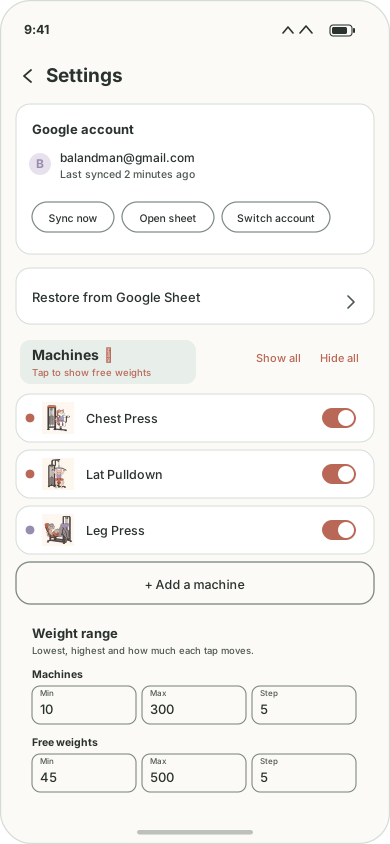
Customizing your machines
Pawgress ships with 39 machines and 33 free-weight exercises — squats, deadlifts, presses, rows, carries and core work — each with its own illustration. Only a starting circuit of machines is visible at first; everything else, including all the free-weight exercises, ships switched off. Settings (the gear icon) is where you make the grid look like your actual routine.
Those are two long lists, so the list shows one kind at a time. The heading itself is the switch: it reads Machines ⇄ or Free weights ⇄ depending on which you're looking at, with a "Tap to show…" line underneath naming the other. Tap it to swap.
It changes only what the list displays. Show all and Hide all still act on every exercise, not just the half currently on screen.
- Hide what you don't use. The toggle beside each machine removes it from the grid. Its history is kept, so turning it back on later loses nothing.
- Rename to match your gym's labels. If the sign on the machine says something different from what Pawgress calls it, change it — you'll find it faster.
- Change the icon if a different picture reads better to you at a glance.
- Change the body area to re-group where it sits in the grid.
- Add your own with Add a machine for anything your gym has that isn't in the catalog.
Show all and Hide all at the top of the list are the fast way to start from everything or from nothing and work toward your circuit.
Setting the weight range
The logging dial runs 10–300 lb in 5 lb steps out of the box. Under Weight range in Settings you can change the lowest and highest weight it offers, and how far each −/+ tap moves it.
Machines and free weights are set separately, because they aren't the same problem. A pin stack starts around 10 lb and climbs in fives; a barbell starts at the weight of the bar and a dumbbell rack might step in twos. One shared range would be wrong for both.
| Field | What it does |
|---|---|
| Min | The lowest weight the dial will go to. |
| Max | The highest. |
| Step | How much one −/+ tap changes the weight. The slider snaps to the same steps. |
Steps are counted from your minimum, not from zero — so a range starting at 45 in steps of 5 gives you 45, 50, 55, rather than an awkward first stop.
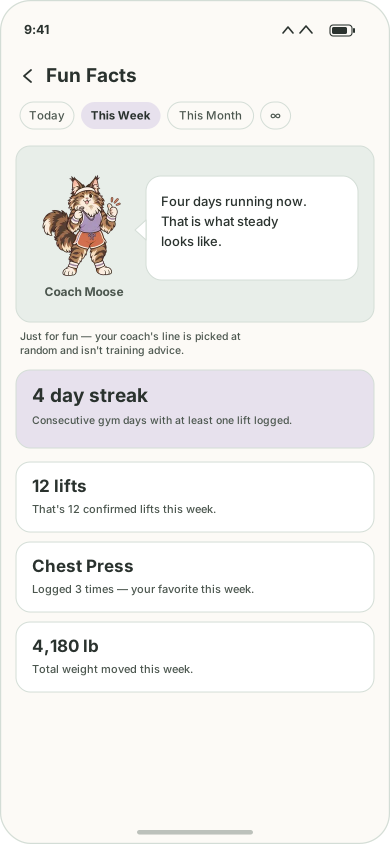
Fun Facts
Tap the word Pawgress at the top of the grid. The chips across the top — Today, This Week, This Month, and ∞ for all time — change the window every card below is measured over.
You'll see:
- Your coach, with a line of encouragement.
- Pawprints earned, all time — the big number. This one only ever goes up: spending pawprints on a coach or an outfit doesn't lower it, so it measures how much you've trained rather than what you can afford.
- Your streak — consecutive gym days with at least one lift logged.
- Where your pawprints came from — which exercise has earned you the most, your top three, which body area pays best, and your average per gym day.
- Stat cards — how many lifts, total weight moved, your most-logged machine for the period.
The lifetime pawprint number and the pawprint breakdown are always all-time; the range chips don't change them. Everything else on the screen follows the chips.
Trends
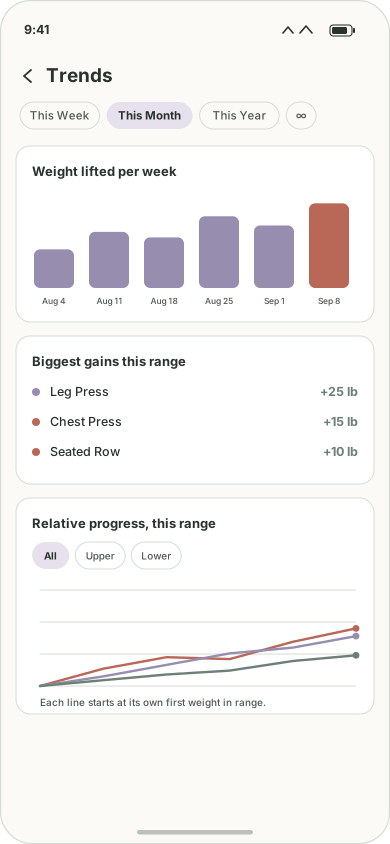
The small graph icon beside the title opens Trends. As on Fun Facts, the chips set the window: This Week, This Month, This Year, or ∞.
Weight lifted per period
A bar per day, week, or month depending on the range you picked — the quickest read on whether you've been showing up.
Biggest gains this range
Which machines went up the most over the window, largest first, each with its body-area dot.
Relative progress
Several machines on one chart. Each line is rebased to its own starting weight in the range, so a leg press at 200 lb and a biceps curl at 40 lb can be compared on the same axis — you're seeing change, not absolute load. Use the All ▸ body area ▸ machine chips to narrow it down.
Everything on this screen counts only machines currently visible in your grid, so hidden machines don't quietly skew the totals.
Pawprints and coaches
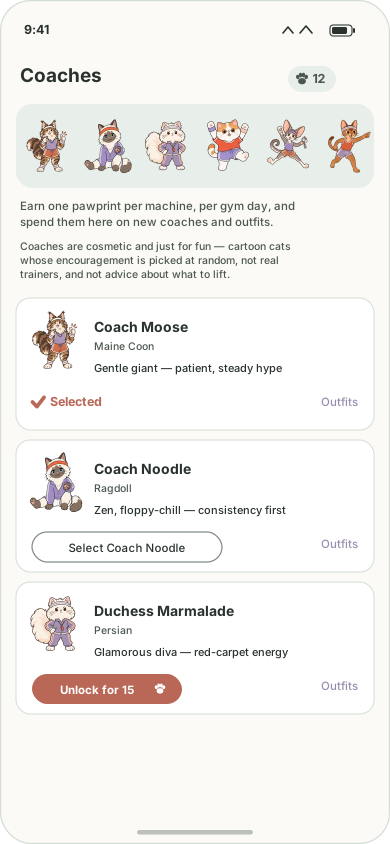
You earn one pawprint the first time you log a given machine on a given gym day. Logging the same machine again later that day doesn't earn more, and undoing an entry refunds the pawprint. Your balance sits in the top bar; tapping it opens this screen.
There are 22 coaches. The first is free; the next nineteen cost 10, 15, 20 and so on up to 100 pawprints, and the last two — Coach Yip Yip and Tiny1 Fuzzy Pants — are a step beyond that at 125 and 150. Once unlocked, tap Select to make one yours — that's the coach who appears on Fun Facts.
Outfits
Each coach has seasonal outfits at 15 pawprints apiece, bought and equipped per coach. They're time-gated — available only during their real-world window, like Halloween through October, or Summer Shades from June to August. Outside its window a coach quietly returns to their normal look and your choice reappears next year with nothing to re-select. Switching back to the base look is always free.
Backing up your data
Pawgress keeps your log on your phone and works completely offline. Getting a copy off the phone works differently on the two platforms, because Google sign-in isn’t built for iPhone yet:
| Platform | How you get your data out |
|---|---|
| Android | Optional Google Sheets sync — a spreadsheet in your own Drive that mirrors every lift, plus a one-tap Restore from Google Sheet. |
| iPhone | The Files app — copy pawgress.json out to back up,
copy it back in to restore. No account, no network. |
Settings shows whichever one applies to the phone you’re holding, so you won’t be offered something that can’t work there.
Android: Google Sheets sync
Optional, and off until you turn it on. Sync is a mirror of your data, never the source of truth.
In Settings, tap Sign in with Google and choose an account. Pawgress creates a spreadsheet called Pawgress in your own Google Drive and adds a row per lift:
Date | Time | Exercise | Weight (lb) | Entry ID | Area | Difficulty
The Settings tab
The same spreadsheet carries a second tab, Settings, holding how your grid is set up: each exercise's name, body area, whether it's a machine or a free weight, shown or hidden, its icon and its position, plus your weight-range limits. It's rewritten whenever you sync, so it always reflects the device.
It's a plain, readable table you can edit by hand if you want to — renaming a batch of machines in the sheet is quicker than tapping through them. Your pawprints, coaches and outfits are deliberately not in it: those stay on the device, so nobody can hand themselves a bigger balance by typing in a spreadsheet.
Every lift uploads the moment you log it, so closing the app straight after a set can't strand it. Anything logged with no signal queues up and goes on the next successful sync — Settings shows how many are waiting. Sync now pushes on demand, and Open sheet jumps straight to the spreadsheet.
Restore from Google Sheet
Reads the whole sheet back and merges in anything missing locally — useful after a reinstall or on a new phone. It restores your setup from the Settings tab as well as your lifts from the Log tab, so a fresh install comes back with your machines named, hidden and ordered the way you had them.
It matches lifts by Entry ID, so running it twice does nothing the second time. It only ever adds: an exercise the sheet doesn't know about is left alone rather than deleted, nothing already on your device is overwritten by an older sheet, and it never retroactively awards pawprints.
Each account gets its own everything
Sign in as someone else and the whole app switches over — their machines, their history, their spreadsheet. Sign back and you're exactly where you left off. Two people can share a phone without seeing each other's numbers. Whatever you set up before signing in is adopted by the first account to sign in, so nothing configured early is lost.
drive.file permission, which grants
access only to files the app itself created. It cannot see anything
else in your Drive. There is no Pawgress server — see the
Privacy Policy.
iPhone: the Files app
On iPhone, Settings shows a Backup card instead of the
Google one. Everything you log lives in a single file,
pawgress.json, and the app publishes the folder holding it
to the Files app. Open Files and go to
Browse → On My iPhone → Pawgress.
To back up: copy pawgress.json somewhere
safe — iCloud Drive, email it to yourself, AirDrop it to a laptop.
Doing this after a session is the whole routine.
To restore: force-quit Pawgress first (swipe it away
in the app switcher), copy your saved pawgress.json back
into that folder replacing the one there, then reopen the app. The
force-quit matters: a running app can write its own copy back over
yours as it closes.
The file is JSON, not a spreadsheet, so it isn’t as pleasant to read as the Android sheet — but it is your complete data, it is plain text, and nothing but your phone and wherever you put the copy ever sees it. Unlike the Android route it captures everything, pawprints and coaches and outfits included, because it is the app’s actual save file rather than a mirror of part of it.
Resetting and starting over
Two options at the bottom of Settings, and they differ a lot:
| Option | What it does |
|---|---|
| Reset today | Clears only today's logged entries, as if the session hadn't happened yet. Your history is untouched. |
| Full reset | Erases your entire local workout log. Both ask you to confirm first. |
Neither one touches your pawprints, your unlocked coaches, or your outfits — and neither reaches off the phone.
On Android, if sync is on, your history is still in the spreadsheet
after a full reset and Restore from Google Sheet will
bring it back. On iPhone the only thing that can bring it back is a
copy of pawgress.json you made earlier, so make one before
a full reset rather than after — see
iPhone: the Files app.